Jun 20, 2017 | Apple Watch, Article, Auto Unlock, Blog, How-To, iPhone, Mac, macOS, passwords, productivity, Restricted Content, security, two-factor authentication
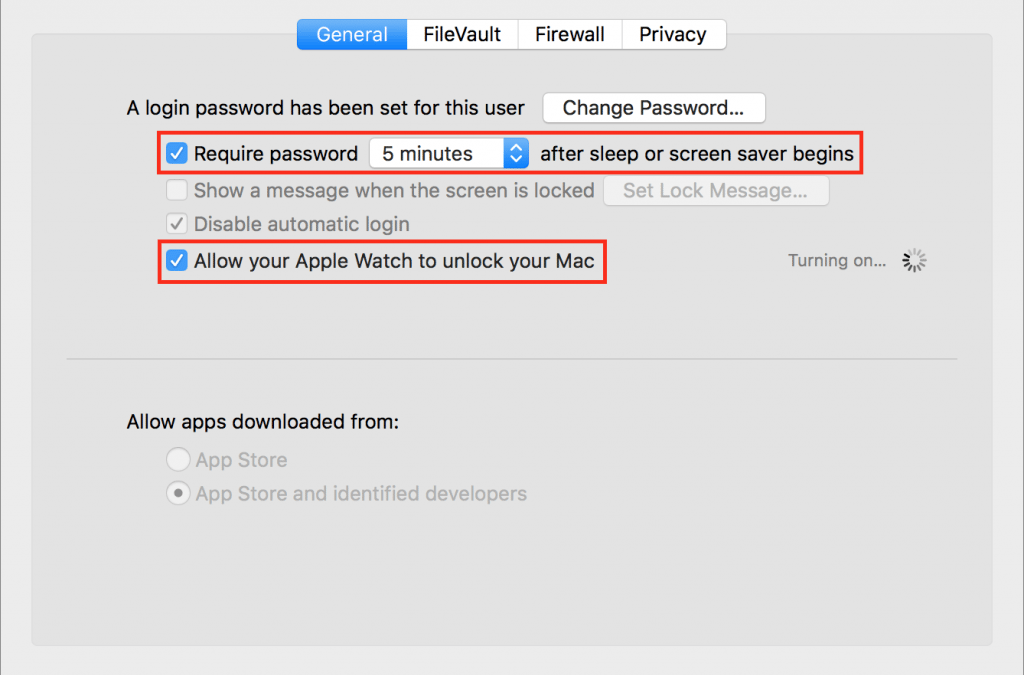
It’s magic. You walk up to your Mac, touch a key to wake it up, and upon noticing that you’re wearing your Apple Watch, it unlocks without making you enter a password. Brilliant! For some of us, it’s almost a reason alone to get an Apple Watch. Auto Unlock, as Apple...
Jun 10, 2017 | Blog, iOS, iPhone, keyboard shortcut, productivity, Restricted Content, Tip, typing
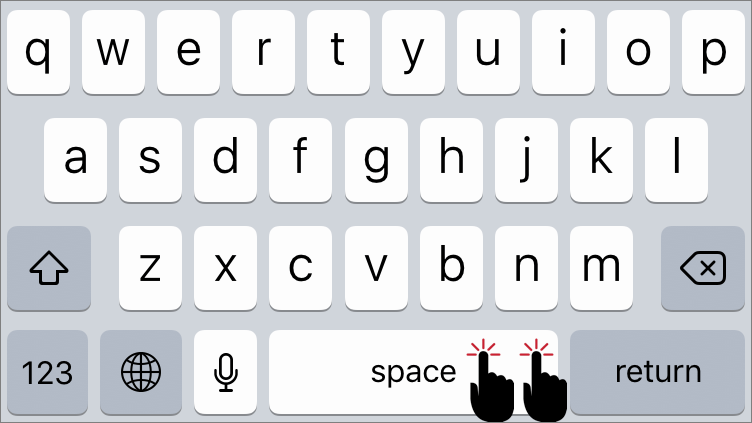
If you’re thinking, “Why yes, I do know that in iOS a double-tap on the Space bar after typing a word inserts a period and then a space,” award yourself a virtual gold star. If you weren’t aware of that super useful trick, well, you are now. Getting to the Period key...
Jun 9, 2017 | Blog, Desktop, Finder, Mac, productivity, Restricted Content, Tip
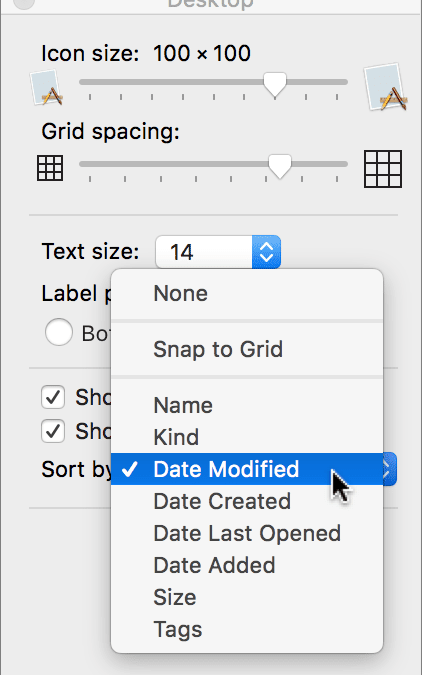
Is your Mac’s Desktop a cluttered mess? That’s not a criticism—it happens to all of us. A few files here, a folder or two there, and before long you can’t find anything amid all the icons. There’s a solution, of course, which is that the Finder lets you sort the icons...
May 23, 2017 | Blog, Mac, modifier key, productivity, Restricted Content, screen, Tip, zoom
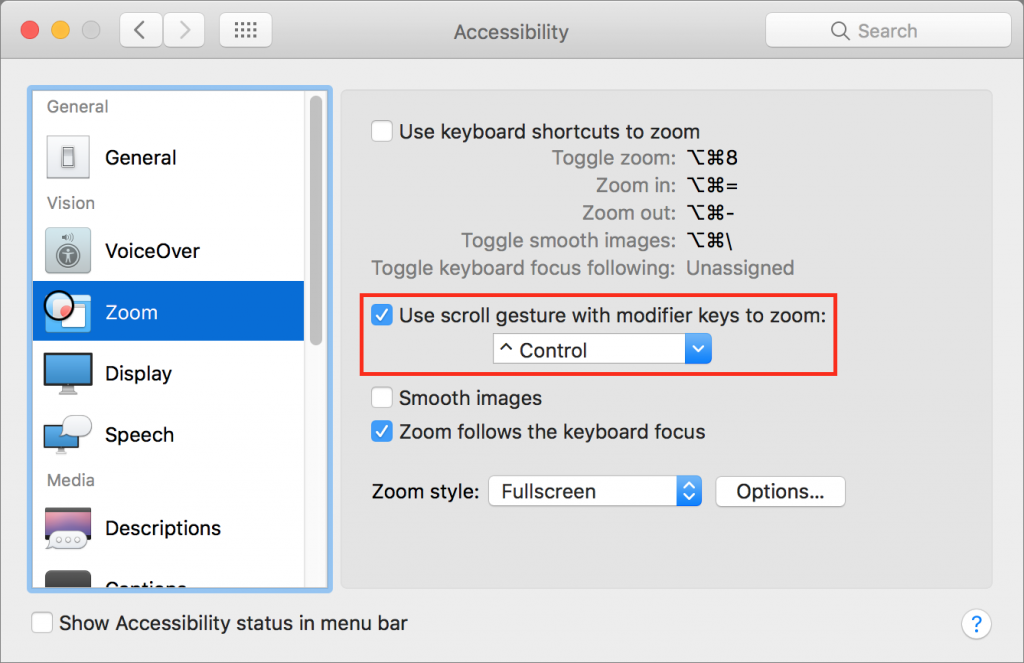
No matter how good your eyes are, at some point there will be something on your Mac’s screen that’s just too small to see well. With just a minute of setup, you can take advantage of a macOS feature that lets you zoom the screen right where the pointer is. Open System...
May 22, 2017 | Article, Blog, customization, keyboard shortcut, Mac, productivity, Restricted Content, Save dialog, Solution
There’s nothing sexy about the Save dialog in Mac apps. It’s not pretty, you can’t tweet from it, and Apple hasn’t changed anything about it in years. But every time you create a new document in a Mac app, you have to save it. Once in the Save dialog, you name your...
May 15, 2017 | Blog, Finder, keyboard shortcut, Mac, macOS, productivity, Quick Tip, Sierra, Tip, Trash
Every Mac user knows that you drag files or folders you want to delete to the Trash icon in the Dock. And you probably even know that you can select multiple items by Shift-clicking (for a sequential range of items in a list view) or Command-clicking (for an arbitrary...